


Talk to the people next to you. Even at 35,000 feet.
YapBuds turns a few iPhones or iPads and their headphones into a private group intercom for people sitting near each other, on a plane, a train, a boat, or anywhere too loud to talk.


Requires iOS 26 or iPadOS 26 or later.
- Code required to join
- Nothing recorded, nothing uploaded
- Works with AirPods and any headset
How it works
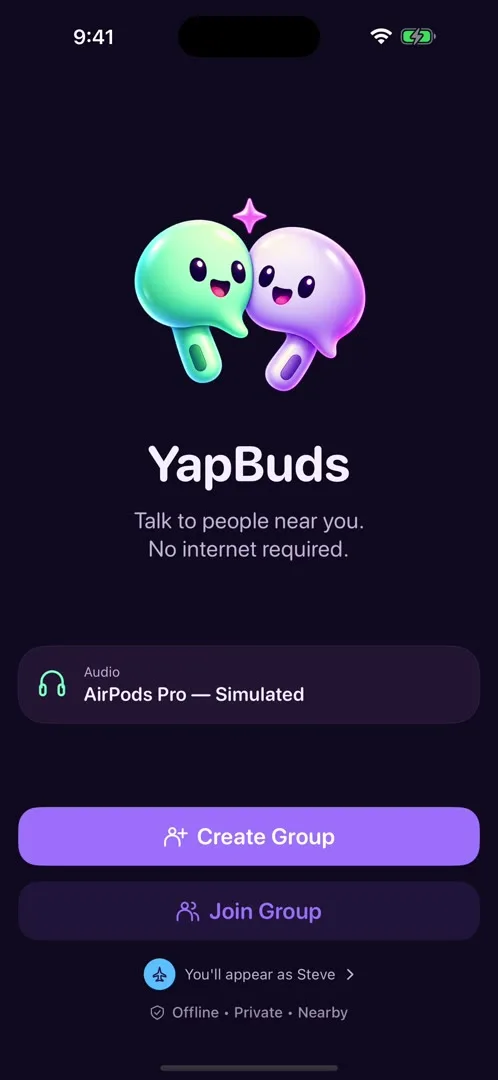
Step 1: Create a group.
Tap Create Group. You get a six-character code and a QR code to show your seatmates.
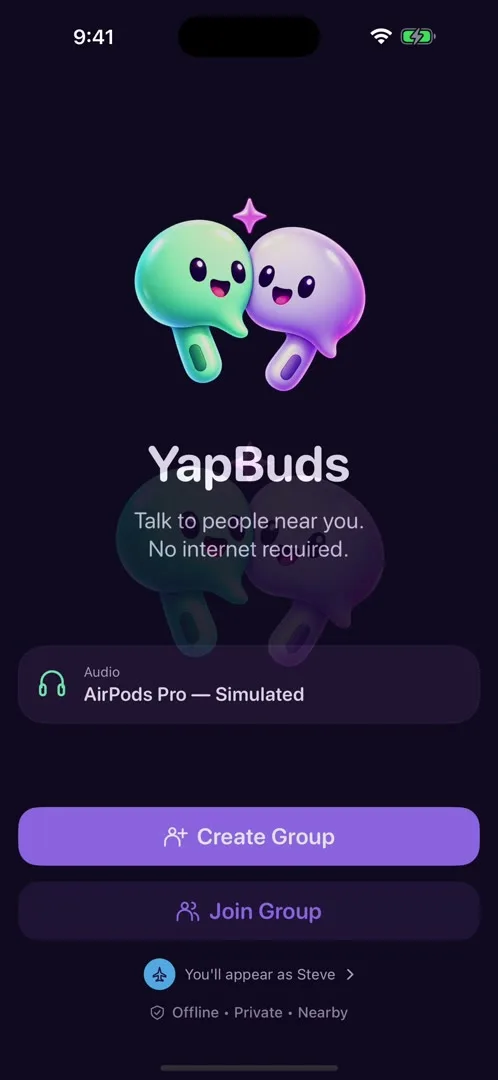
Step 2: Friends join with the code.
They tap Join Group and type the code, or scan the QR. The host sees them arrive and taps Start Chat.
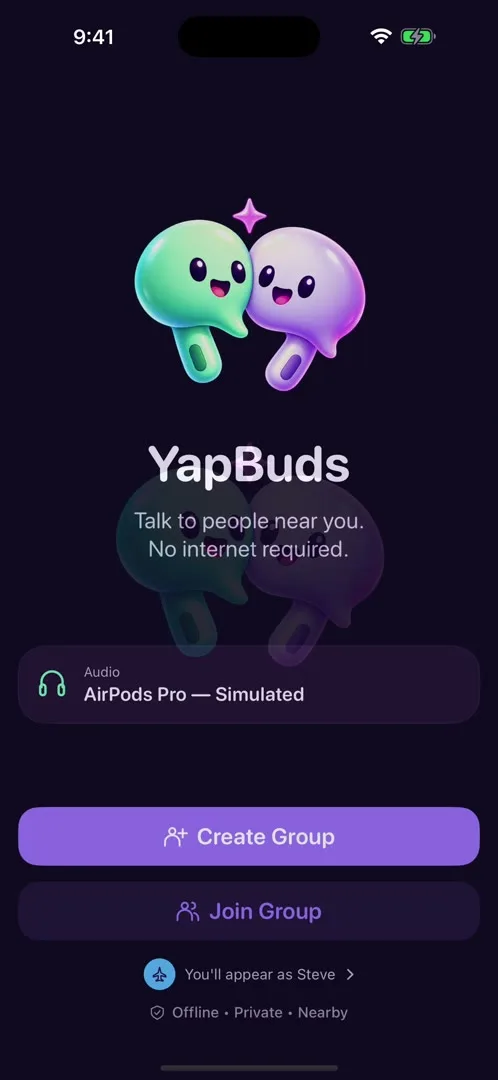
Step 3: Put on your headphones and talk.
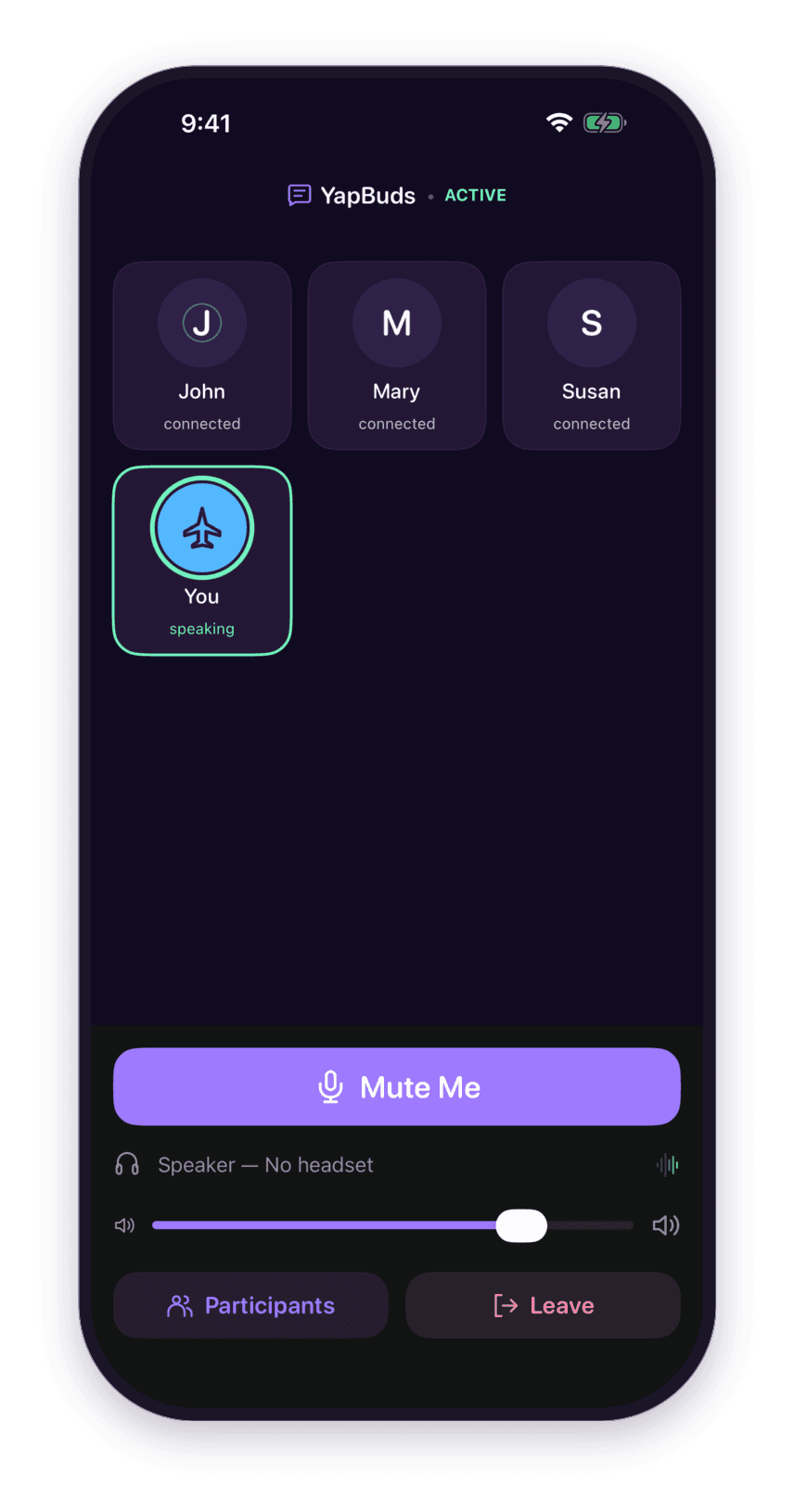
Everyone hears everyone. The host can mute or remove anyone.
A look inside
Real screens from the app on iPhone and iPad.
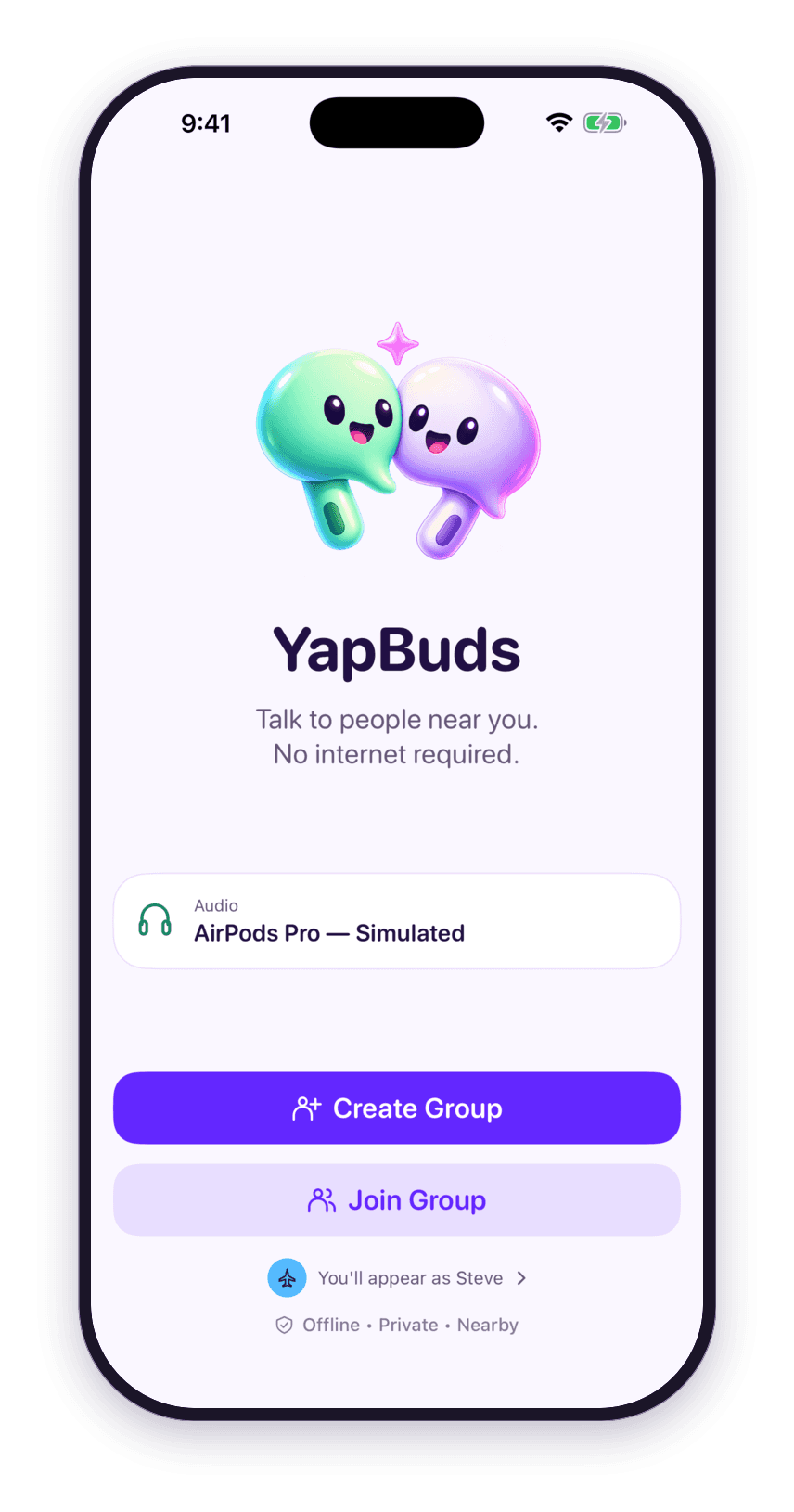
Talk to people near you. 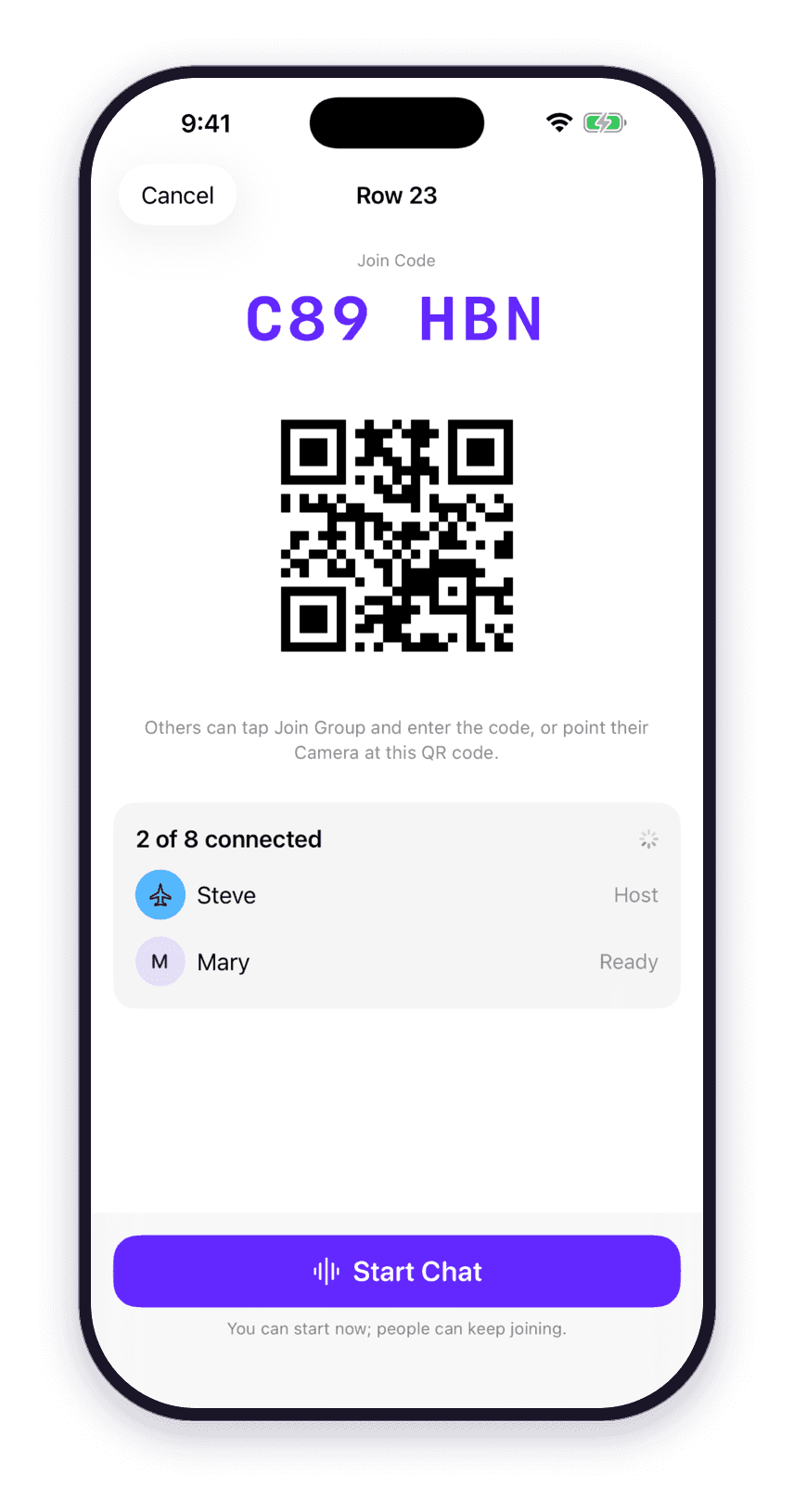
Share a code. Only your group gets in. 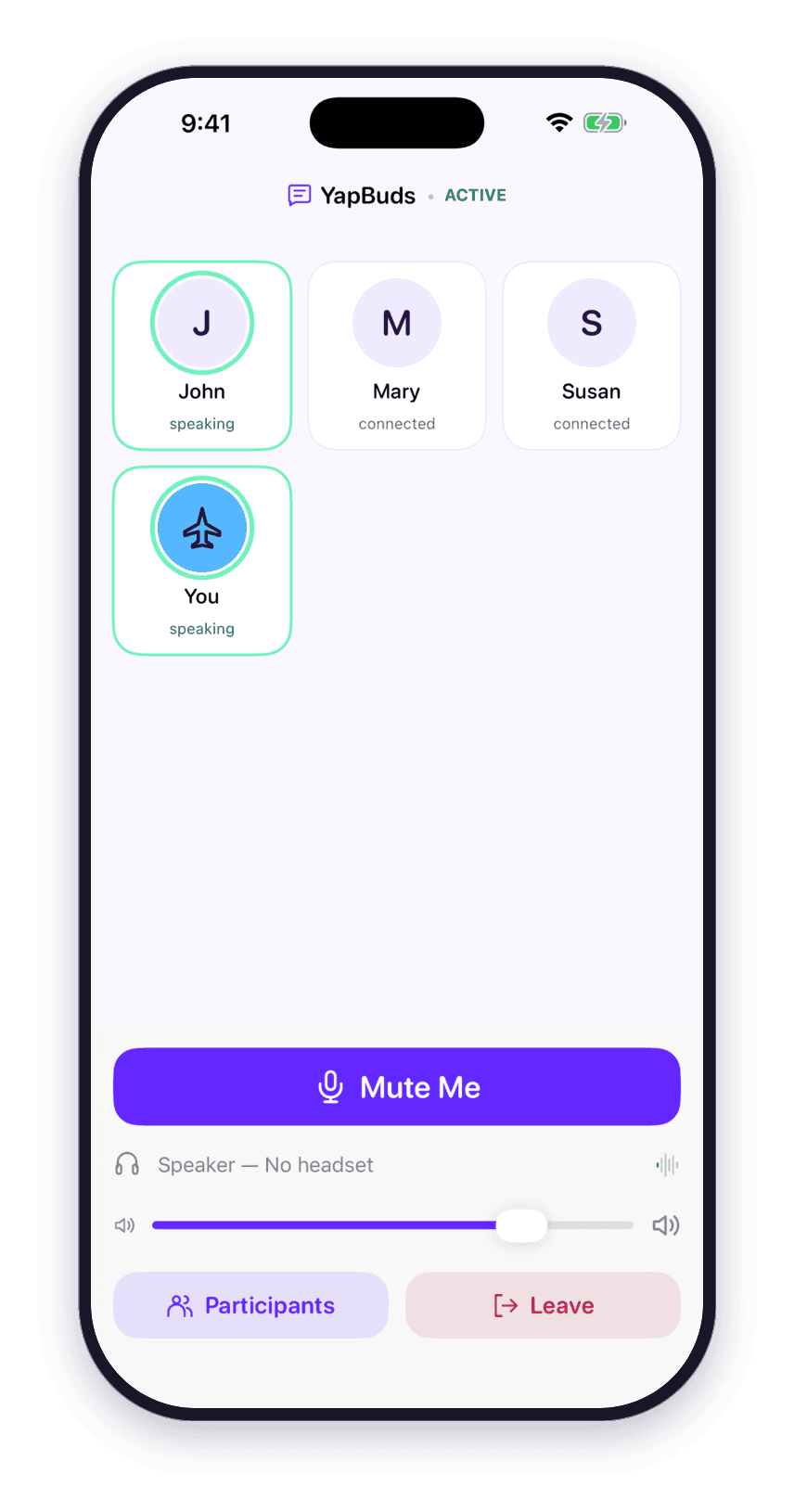
Everyone hears everyone. 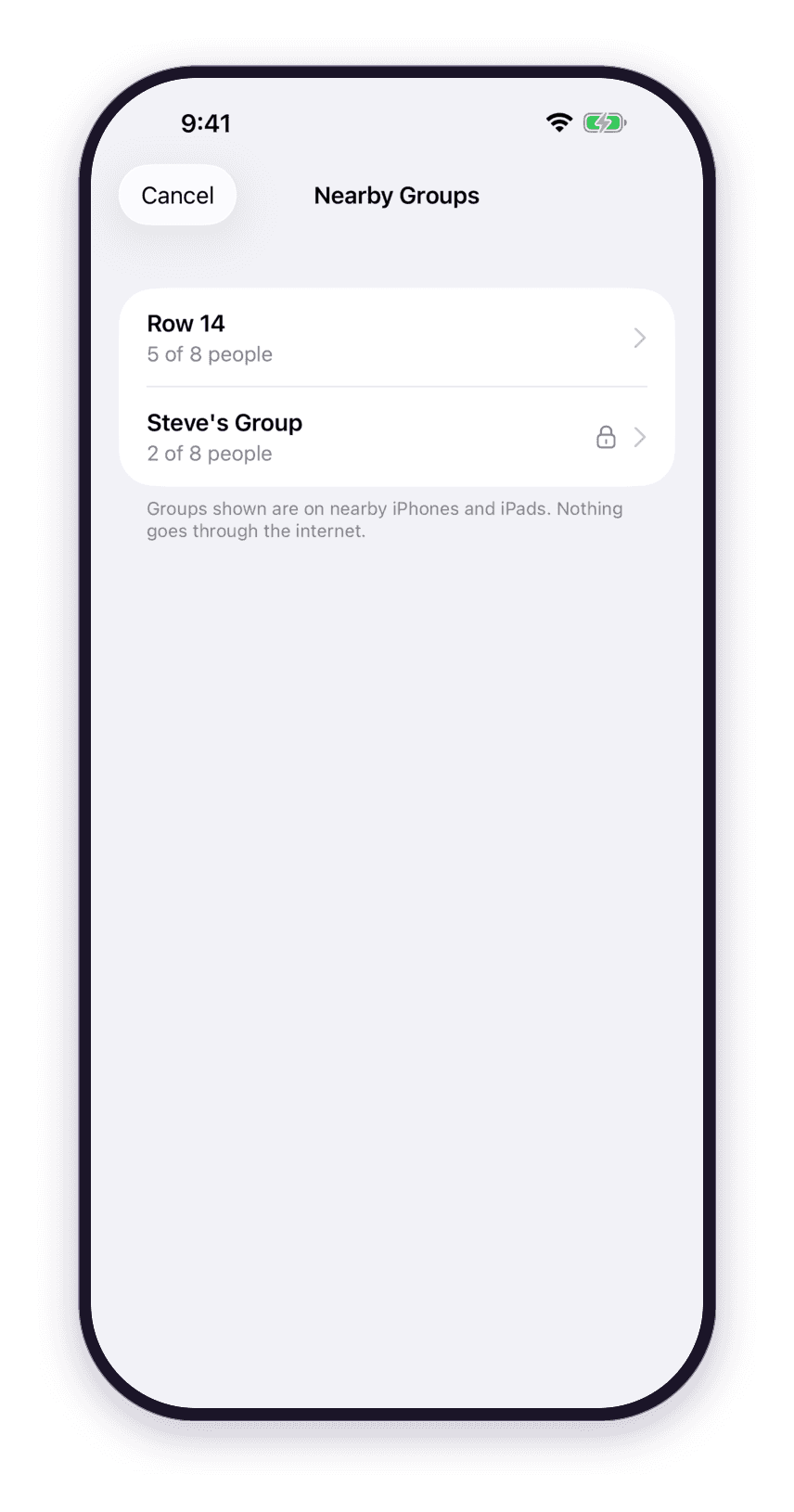
Find your group nearby. 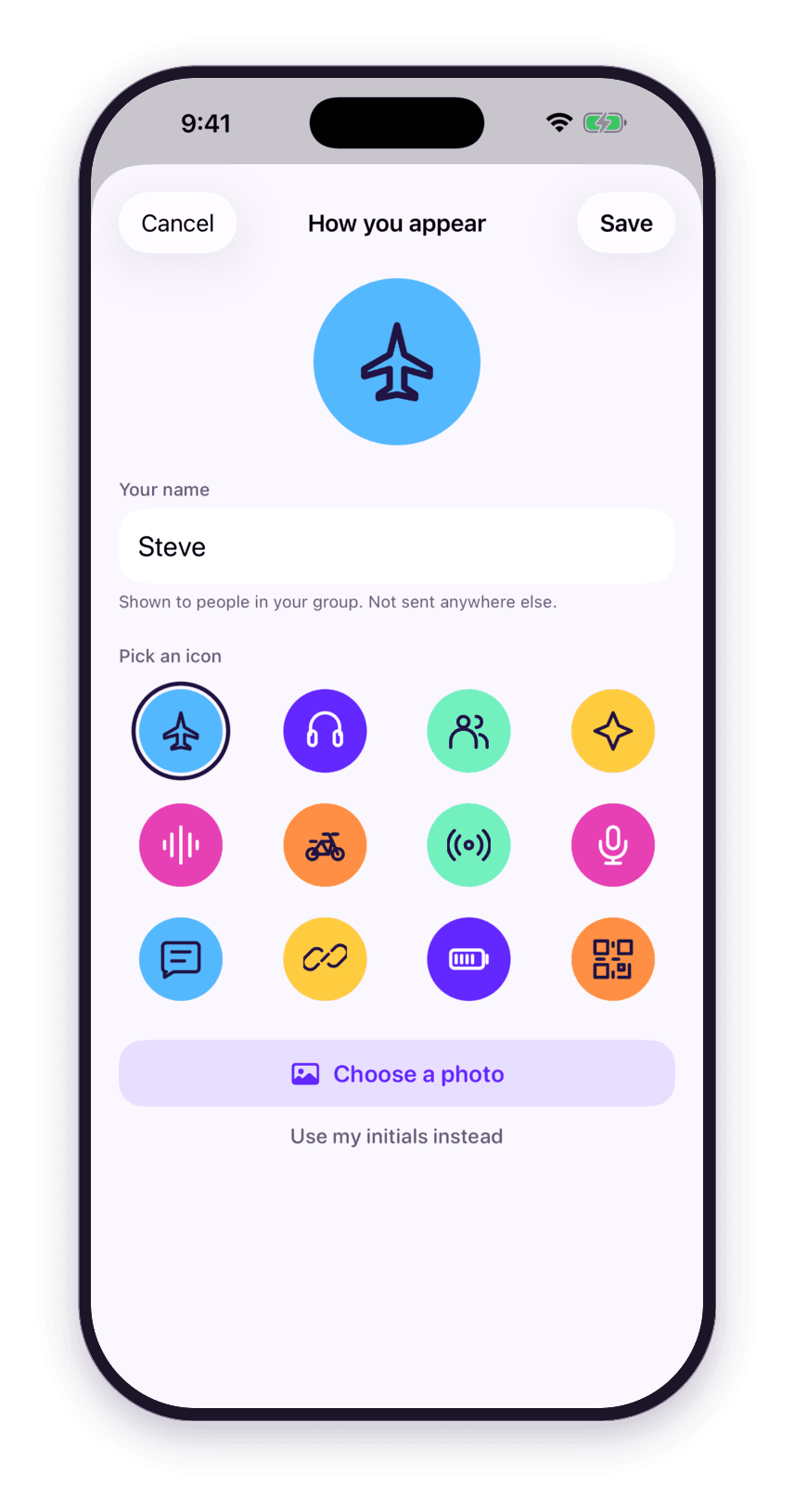
Pick a name and an icon. They stay on your device. 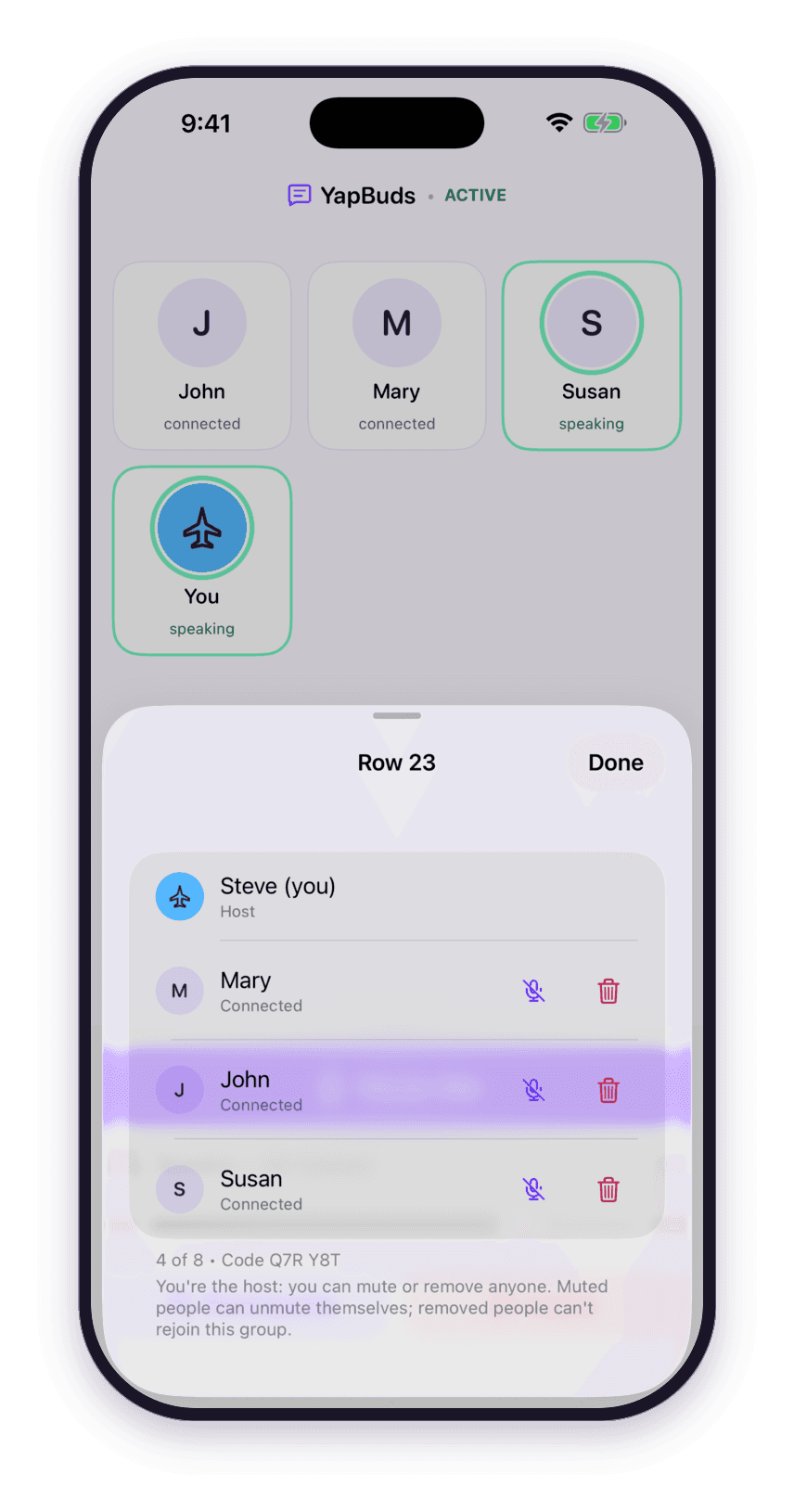
The host can mute or remove anyone. 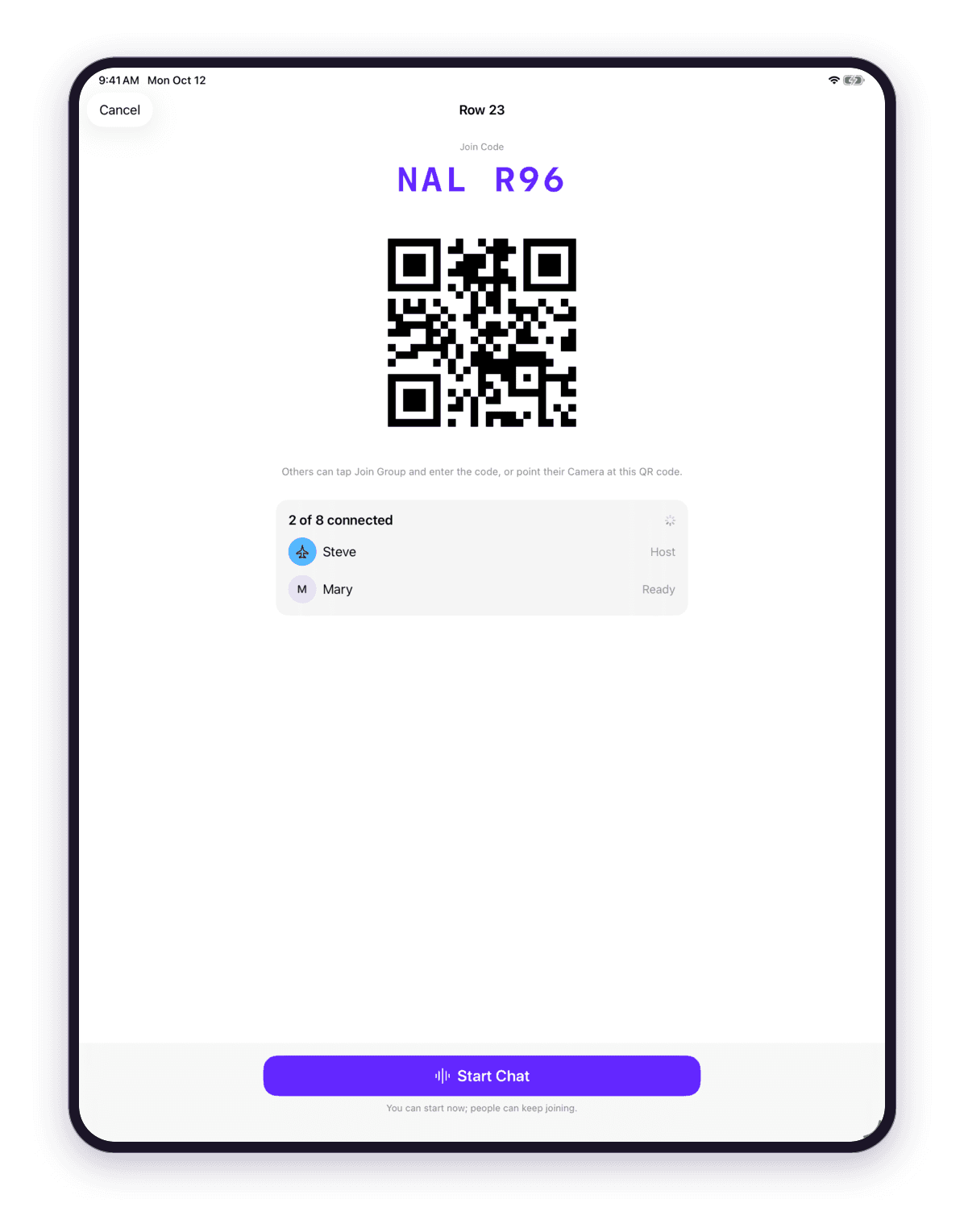
Share a code. Only your group gets in.


Who it's for

Seatmates on a flight
Keep the conversation going from takeoff to landing without raising your voice.

Road trips and rides
Front seat and back seat, everyone stays in the same chat.

Loud rooms, boats and sidelines
When it is too loud to talk, put in your earbuds and talk anyway.
Private by design
- No account.
- No server.
- Nothing recorded.
- Encrypted between your devices.
YapBuds asks for two permissions, Microphone and Local Network, and nothing else.
Read the privacy policyThe exact wording the app shows when it asks:
- Microphone
“YapBuds needs the microphone so people in your nearby group can hear you. Your voice is sent only to nearby iPhones and iPads in your group and is never recorded or uploaded.”
- Local Network
“YapBuds uses the local peer-to-peer network to connect directly to nearby iPhones and iPads in your group, without internet access or joining a Wi-Fi network.”
Questions
Do I need internet or cell service?
YapBuds connects nearby iPhones and iPads directly to each other using Apple's peer-to-peer Wi-Fi. It is designed for places where you have none, such as an airplane cabin. Wi-Fi and Bluetooth must be turned on in Control Center. Airplane Mode is fine as long as you turn Wi-Fi and Bluetooth back on afterward.
How many devices do I need?
At least two. One person creates the group and the others join it with the code. Everyone needs the app installed.
How do people join my group?
When you create a group, YapBuds shows a six-character code and a QR code. Your friends tap Join Group and type the code or scan it. There is no way to join a group without its code.
Can strangers nearby listen in?
No. Each group is encrypted with keys created on your devices for that group only, and those keys are mixed with the join code. Someone who does not know the code cannot complete the join. The keys are thrown away when the group ends.
What can the host do?
The person who created the group can mute anyone (they can unmute themselves) and can remove anyone. A removed person cannot rejoin that group.
Is my voice recorded or sent to a server?
No. There is no server. Your voice travels only between the devices in your group, encrypted, and is never recorded or stored.
What permissions does YapBuds ask for?
Microphone, so the group can hear you, and Local Network, so your device can find and connect to the nearby devices in your group. It asks for nothing else.
Do I need an account?
No. There is nothing to sign up for. You pick a display name and, if you like, a small avatar; both stay on your device.
Which headphones work?
AirPods and any Bluetooth or wired headset with a microphone. You can also use the device's own microphone and speaker, but headphones keep the conversation private and avoid echo.
Which devices are supported?
Any iPhone or iPad running iOS 26 or iPadOS 26 or later. YapBuds is not available for Android, Mac, or the web.
Support
Questions, problems, or something that looks wrong? Email us.
We reply within two business days.
Please include
- Your device model (for example, iPhone 17 Pro)
- Your iOS or iPadOS version
- The headset you were using, if any
- What happened, and what you expected to happen
Testing before release
YapBuds is currently in TestFlight. If you are a tester, you can also send feedback from the TestFlight app: open YapBuds in TestFlight and tap Send Beta Feedback.